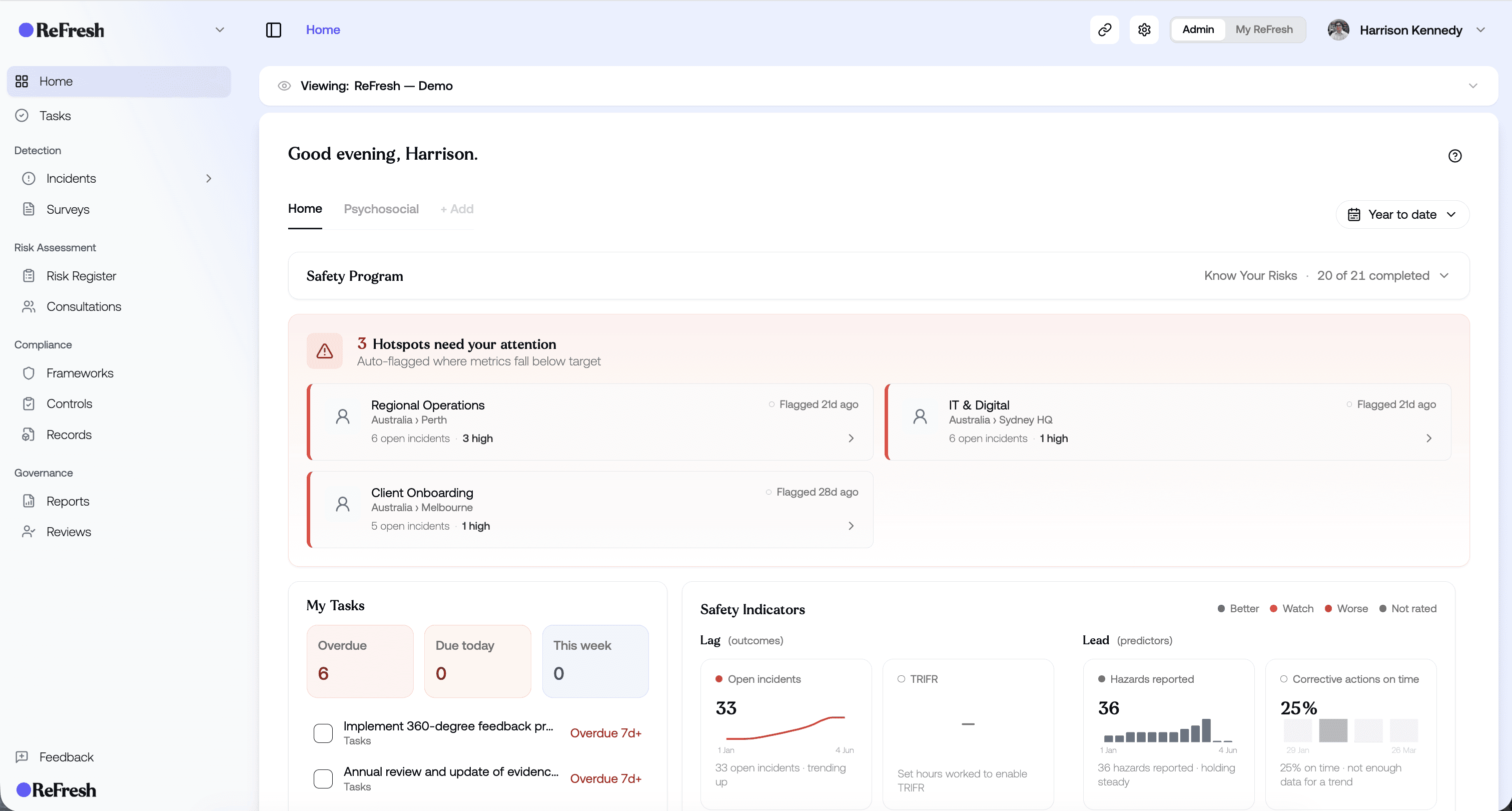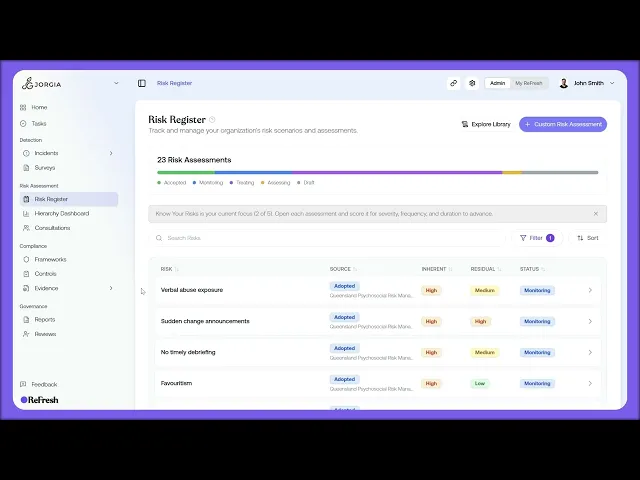
This lesson covers hazard category drill-down: filtering your Risk Register by hazard category so you can see every risk assessment tied to a single category in one place.
What you'll cover:
The filter. Opening the Filter panel from the Risk Register and picking a hazard category to filter by.
The filtered list. The view showing only the risks tagged to that category, with their inherent and residual ratings and current status side by side.
Clicking into one. Opening any risk in the filtered list to see the full assessment.
Key takeaways:
Filtering by hazard category lets you check the state of every risk in a category from one view.
The filtered list puts inherent rating, residual rating, and status side by side, so you can compare across risks at a glance.
From there you can click into any single risk for the full assessment detail.
IN THIS COURSE
2
.
E13. From survey data to risk assessment
2
min
2
.
E14. Creating custom risk assessments
2
min
1
.
E15. Inherent risk scoring
1
min
2
.
E16. Exposure assessment
2
min
1
.
E17. Risk status workflow and treatment strategy
1
min
1
.
E18. Residual risk scoring and the was-vs-now comparison
1
min
1
.
E19. Hazard category drill-down
1
min