This lesson covers generating a shareable incident reporting link from the Incidents page, so workers can report from wherever they are, and seeing what they report when they use it.
What you'll cover:
The Share Reporting Link button. Where it sits on the All Incidents page, top-right next to Report New Incident.
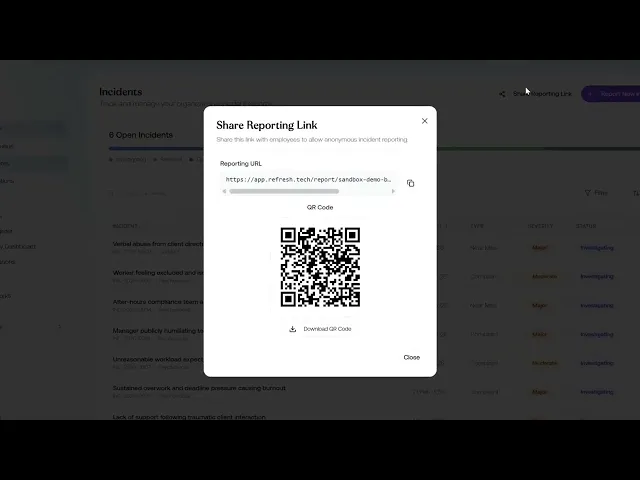
Getting the link and QR code. The dialog that gives you a public URL and a QR code, with options to copy the link for your channels or download the QR code to print.
Where to deploy. Common placements: posters in break rooms, induction packs, the intranet, email signatures, and Slack channels.
What workers see. The public report form, capturing incident type, hazard, title, and what happened, with no login required.
Key takeaways:
One link or QR code gives every worker a way to report, without needing an account or login.
The same dialog covers both digital and physical channels, so you can copy the URL or print the QR code from the one place.
The worker-facing form is deliberately short, capturing just the incident type, hazard, title, and what happened, so reporting stays low-friction.
IN THIS COURSE
3
.
O13. Incident reporting and triage
3
min
1
.
O14. Shareable reporting links, QR codes, and multi-channel deployment
1
min
4
.
O15. Incident handler groups, SLAs, and escalation rules
4
min
4
.
O16. Opening and managing investigations
4
min
4
.
O17. Collecting statements, managing people involved, and the investigation record
4
min
2
.
O18. Incident resolution
2
min
3
.
O19. Notifiable incidents and regulatory deadlines
3
min
3
.
O20. Worker self-service incident reporting and the portal experience
3
min